Change

How to Secure Your Home Wi-Fi in 8 Easy Steps

Travis Petersen
Jul 16, 2026

Your home Wi-Fi network connects just about everything—from laptops and smartphones to smart TVs, security cameras, video doorbells, gaming consoles, and smart speakers. As the number of connected devices in the average home continues growing, keeping your Wi-Fi network secure is more important than ever, but you don't need to be a cybersecurity expert to protect your connection.

An unsecured Wi-Fi network can leave your personal information, connected devices, and online accounts more vulnerable to unauthorized access. Weak passwords, outdated router settings, or neglected software updates create opportunities for cybercriminals to exploit your home network. Taking a few minutes to strengthen your Wi-Fi security helps protect your privacy and gives you greater confidence every time you connect.

The good news? Most home Wi-Fi networks can be made more secure with a few simple changes. In this guide, we'll walk through eight easy steps that can help you protect your home network.

Why securing your home Wi-Fi is important

If your network isn't properly secured, it could become an easy target for unauthorized access. Keeping your home Wi-Fi network secure creates safeguards for the many parts of your life that require internet access.

Protecting your personal information

Every day, your devices transmit sensitive information across your home network, including emails, photos, passwords, and personal documents. A secure Wi-Fi network helps reduce the risk of unauthorized users intercepting your data or gaining access to your connected devices. 

Reducing identity theft risk

Cybercriminals are always looking for opportunities to steal personal information. While no security measure is foolproof, using strong Wi-Fi security settings and keeping your network up to date makes it more difficult for attackers to access information that could be used for identity theft or account fraud.

Maximizing home internet performance

If someone gains access to your Wi-Fi without permission, they can use your bandwidth for streaming, downloading, or other online activity. The result may be slower internet speeds, reduced performance, and a less reliable connection for everyone in your household. 

Protecting your smart home devices

Smart thermostats, security cameras, video doorbells, speakers, lights, and other connected devices all rely on your home Wi-Fi network. If your network is compromised, these devices may also become more vulnerable. Securing your Wi-Fi helps create a stronger foundation for your entire smart home.

Preventing malware from spreading

An insecure network can make it easier for compromised devices to communicate with malicious software or spread malware to other connected devices. Good Wi-Fi security practices, combined with regular software updates, help reduce this risk and keep your home network healthier. 

Safeguarding financial accounts

Many people shop online, pay bills, and access banking apps over their home internet connection. While reputable websites use encryption to protect your data, securing your home Wi-Fi adds another important layer of protection for your financial information and online accounts. 

By understanding what's at stake, it's easier to see why taking a few minutes to secure your home Wi-Fi is well worth the effort. The eight simple steps below can help you build a safer, more reliable network for everyone in your home.

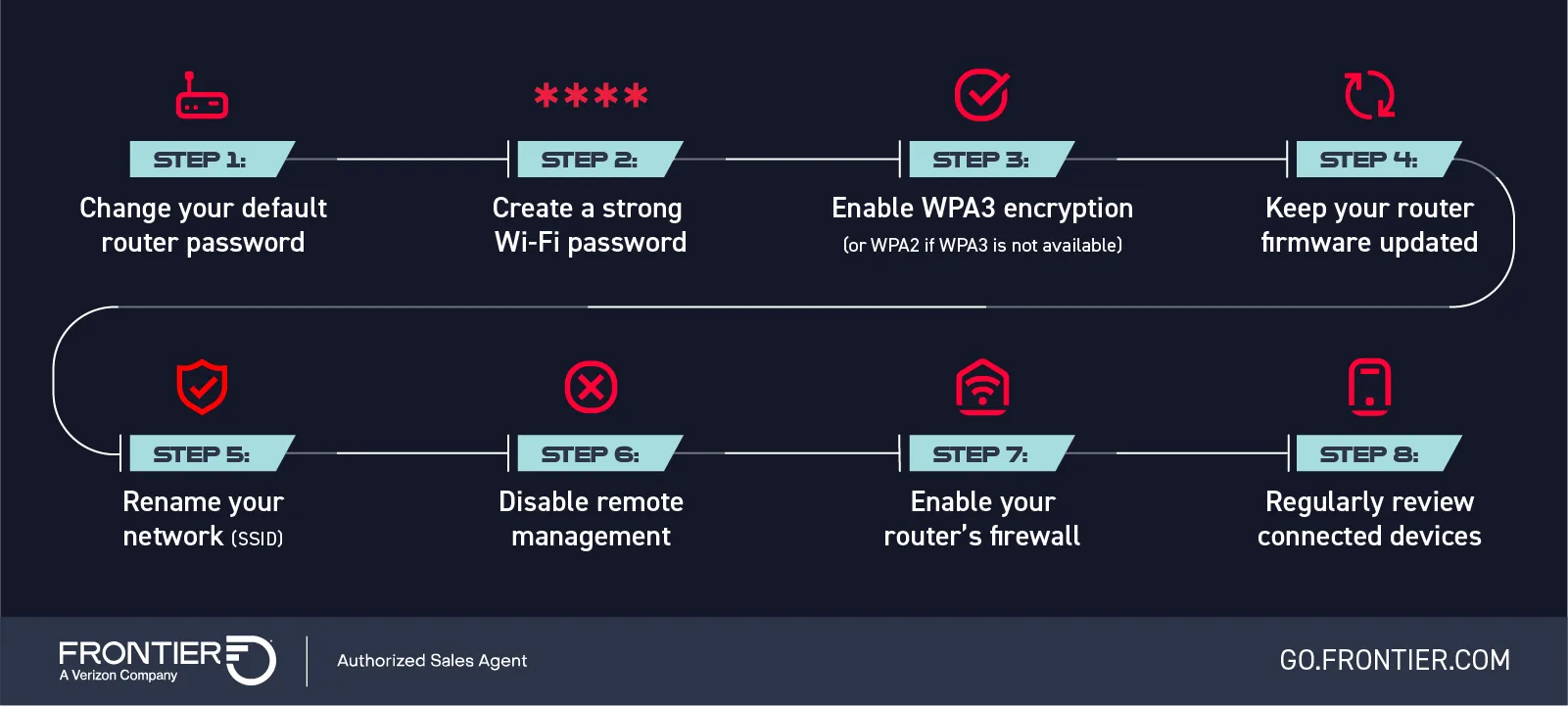
The 8 easy steps to secure your home Wi-Fi

The 8 easy steps to secure your home Wi-Fi: Step 1: Change your default router password, Step 2: Create a strong Wi-Fi password, Step 3: Enable WPA3 encryption (or WPA2 if WPA3 is not available), Step 4: Keep your router firmware updated, Step 5: Rename your network (SSID), Step 6: Disable remote management, Step 7: Enable your router’s firewall, Step 8: Regularly review connected devices

Step 1: Change your default router password

Why it matters

Many routers come with factory-default administrator usernames and passwords that are publicly available online. If you haven't changed them, someone could potentially access your router's settings.

How to do it

Log in to your router's admin page using a web browser or your provider's app. Update the administrator password with a unique, strong password that you don't use for any other accounts.

Pro Tip

Store your router's administrator password in a password manager so you don't have to remember it.

Step 2: Create a strong Wi-Fi password

Why it matters

Your Wi-Fi password is the first line of defense against unauthorized users. Weak or easy-to-guess passwords make it much easier for someone nearby to access your network.

How to do it

Choose a complex password that's at least 16 characters long and avoids names, addresses, birthdays, or common words. Include uppercase letters, lowercase letters, symbols, and numbers. 

Pro Tip

Think of a memorable passphrase made up of several unrelated words instead of a single complex word. It's easier to remember and harder to crack.

Step 3: Enable WPA3 encryption (or WPA2 if WPA3 is not available)

Why it matters

Wi-Fi encryption helps protect the information sent between your devices and your router. WPA3 is the latest, securest standard available on many newer routers. If your router doesn't support WPA3, use WPA2.

How to do it

Sign in to your router's settings and verify that it's using WPA3-Personal. If WPA3 isn't available, select WPA2-AES. Avoid older security protocols like WEP or WPA, which are no longer considered secure.

Pro Tip

If you're shopping for a new router, choose one that supports WPA3 to help keep your network protected for years to come.

Step 4: Keep your router firmware updated

Why it matters

Router manufacturers regularly release firmware updates. These updates improve performance and security.

How to do it
Check your router's settings for available updates or enable automatic firmware updates if your router supports them.
Pro Tip

Set a reminder to check for updates every few months if automatic updates aren't available.

Step 5: Rename your network (SSID)

Why it matters

The default Wi-Fi network name often reveals your router's manufacturer or internet provider, giving attackers additional information about your equipment.

How to do it

Change your network name to something unique that doesn't include your name, address, apartment number, or other personal details.

Pro Tip

Choose a fun but anonymous network name. It helps your network stand out without sharing personal information.

Step 6: Disable remote management

Why it matters

While useful for accessing your router from outside your home network, remote management creates another potential entry point when left enabled beyond necessary use.

How to do it

Visit your router's administration settings and turn off remote management unless you specifically need it.

Pro Tip

If you ever need remote access, enable it only while you're using it, then turn it off again afterward.

Step 7: Enable your router’s firewall

Why it matters

Most modern routers include a built-in firewall that helps monitor incoming traffic and block suspicious activity before it reaches your devices.

How to do it

Check your router's security settings to ensure the firewall is enabled. On many routers, this feature is turned on by default. If it's not active, there should be a toggle button to enable it.

Pro Tip

A router firewall works best when combined with up-to-date security software on your computers and mobile devices.

Step 8: Regularly review connected devices

Why it matters

The average household has dozens of connected devices. Periodically reviewing what's connected helps you spot unfamiliar devices that shouldn't have access to your network.

How to do it

Use your router's management page or mobile app to review the list of connected devices. Remove any devices you don't recognize and update your Wi-Fi password regularly.

Pro Tip

Make it a habit to review your connected devices every few months—or whenever you add new smart home equipment. Regular checkups can help you keep your network secure while ensuring only trusted devices stay connected.

Common mistakes that leave home Wi-Fi vulnerable

Even if you've taken steps to secure your home Wi-Fi, a few common oversights can weaken your network over time. The good news is that most of these mistakes are easy to avoid once you know what to look for. 

Keeping default credentials

Many routers come with factory-default administrator usernames and passwords. If these credentials aren't changed, someone with physical access to your network—or knowledge of the default login information—could modify your router's settings.

Instead: Change your router's administrator password as soon as you set up your network.

Using weak or reused passwords

Simple passwords like "password123" or reusing the same password across multiple accounts make it easier for unauthorized users to access your Wi-Fi network.

Instead: Create a long, unique Wi-Fi password that isn't used for any other accounts or devices.

Ignoring firmware updates

It's easy to forget about your router after it's installed, but skipping firmware updates can leave known security vulnerabilities unpatched.

Instead: Enable automatic updates if they're available or check for firmware updates several times a year.

Sharing your main Wi-Fi password

Giving your primary Wi-Fi password to every visitor, neighbor, or temporary guest can make it difficult to control who has access to your network over time.

Instead: If your router supports it, create a separate guest network for visitors so your main network and connected devices remain more secure.

Leaving guest networks unsecured

A guest network is only helpful if it's properly configured. An open guest network, or one with a weak password, still creates unnecessary security risks.

Instead: Protect your guest network with a strong password and turn it off when you don't need it.

Connecting devices you don’t trust

Every device connected to your network has the potential to introduce security risks, especially if it's outdated or comes from an unknown source.

Instead: Only connect devices you trust, keep their software updated, and periodically review the devices connected to your network.

Common mistakes vs. best practices

Attention Icon
Common mistakes
  • Leaving the router's default administrator password unchanged 
  • Using a short or easy-to-guess Wi-Fi password
  • Skipping router firmware updates
  • Sharing your main Wi-Fi password with everyone
  • Leaving the guest network open or unsecured
  • Never checking which devices are connected 
security locks icon
Best practices
  • Create a unique administrator password during setup
  • Choose a long, unique passphrase with a mix of characters 
  • Check for updates regularly; enable automatic updates when available
  • Use a password-protected guest network for visitors 
  • Protect guest networks with a strong password and disable them when not in use
  • Review connected devices regularly and remove unfamiliar ones