


1. Apps & websites
Safe browsing, threat detection & VPN
A connected home lets you pay a bill from the couch, answer the door from work, or stream while someone else games online. Each connection, however, creates another place where a scam, unsafe website, or weak password might cause trouble.
Learning online security basics makes those risks manageable. A few well-chosen tools and habits can strengthen home network security and protect everyone using your connection.
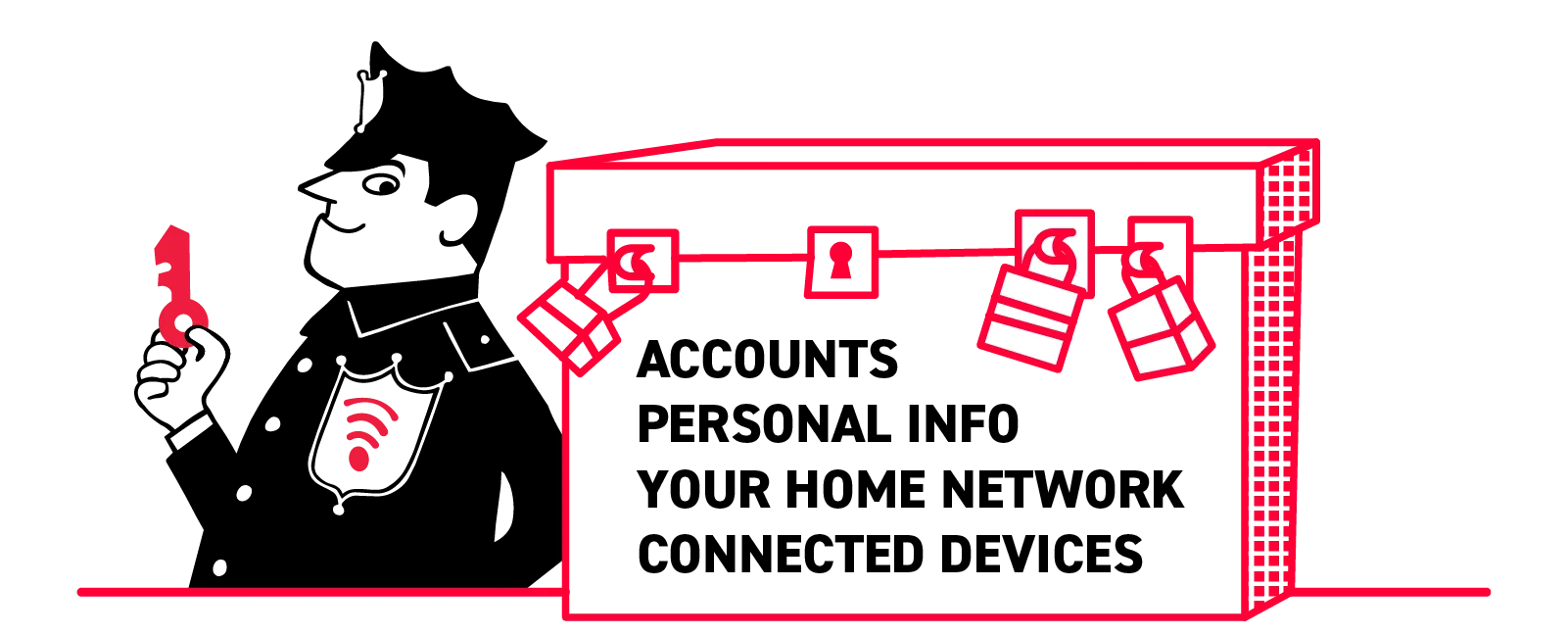
In short: internet security protects your data. “Data” means any information you create, receive, share, or collect/store through online activity.
If that sounds broad, that’s because it is. Literally every interaction you have with websites, apps, and other devices constitutes your data: web engine searches, photo uploads, cloud storage files, photo shares, and sensitive information like usernames/passwords, credit card numbers, medical records, and location details.
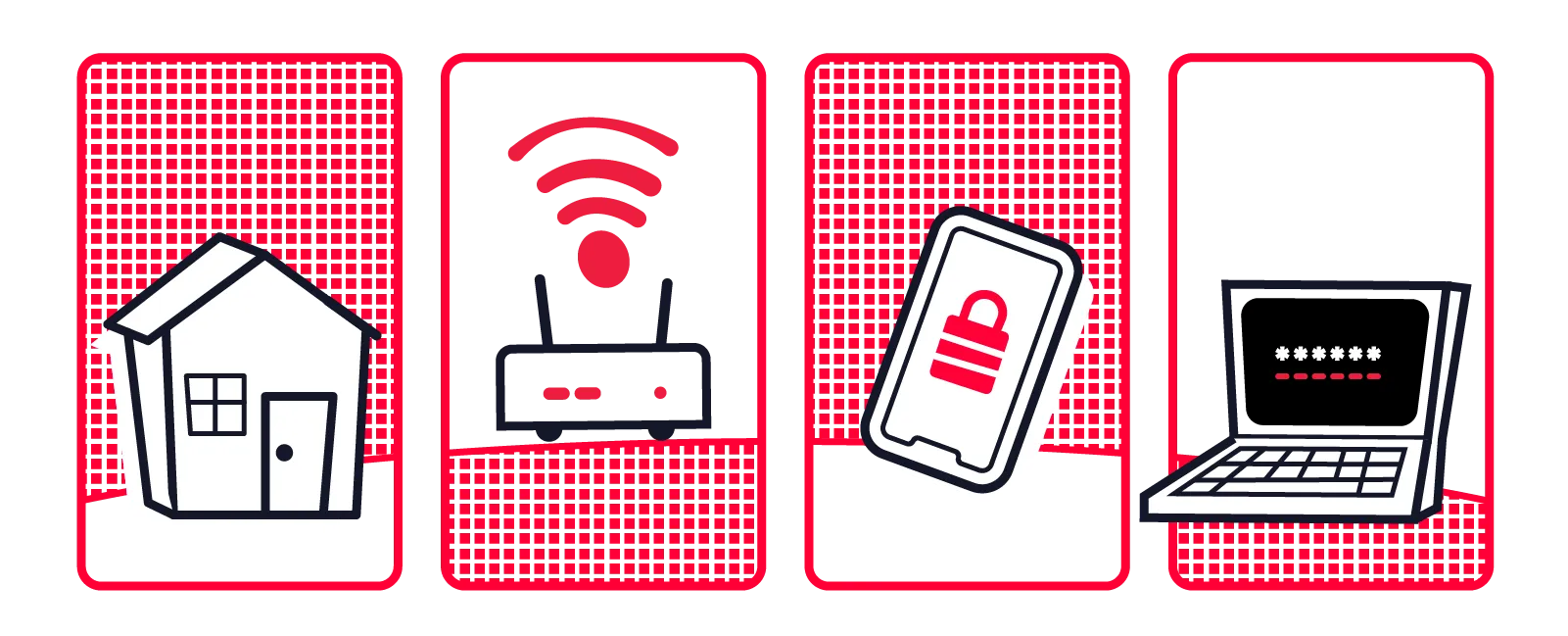
Luckily, you don’t need to be a cybersecurity expert to build a solid defense designed to cover the majority of these interactions. Focus your strategy on the following four areas for a comprehensive approach:
Keep in mind that because home network security stops at your router, portable devices also need account safeguards and security tools for use at work, school, hotels, coffee shops, and practically any other public place. That helps protect not only the devices themselves, but also your home network once your portable devices reconnect.
During every online action—opening a banking app, following a recipe, or checking a smart doorbell alert—information passes through several places where security can be compromised.
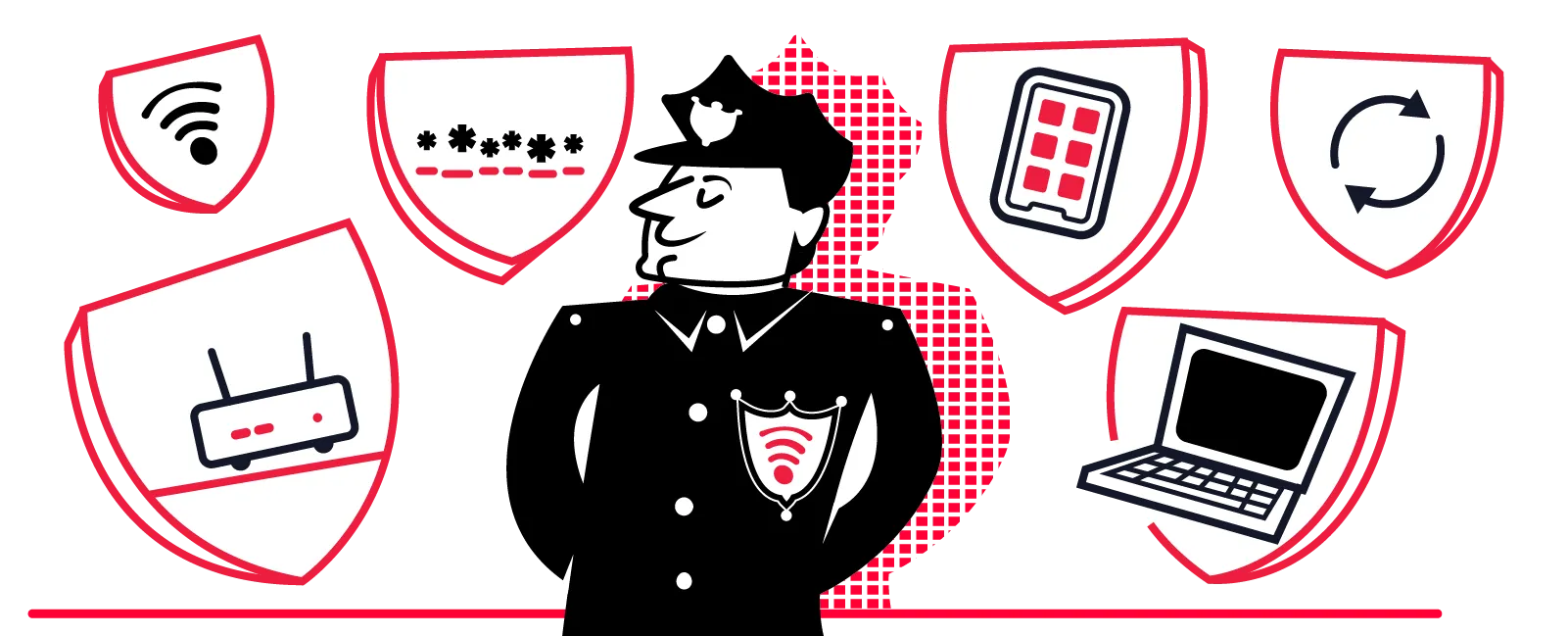
Good internet security is not one wall standing between your household and the wider internet. It’s a collection of well-maintained layers that, together, help reduce the risk of experiencing a security breach.
Each layer covers different risks. Together, they provide stronger protection.
Safe browsing, threat detection & VPN
Encryption & firewall
Anti-malware & software
Passwords & 2FA/MFA
Healthy security habits
We’ve covered what internet security is and how it works—now let’s cover how to identify specific threats.
Common household threats tend to rely less on advanced hacking techniques and more on familiar weak points: a rushed click, reused password, outdated device, or router left with default settings.
Many attacks are broad and automated rather than aimed at one household personally—and that means basic security habits can block many common attempts.
Recognizing what online security threats look like can help you respond to them effectively before one compromised account or device affects more of your connected home. Most begin with an ordinary message, download, login, or connected device.
Phishing messages impersonate a person or company you trust—and they usually pressure you to act immediately to send/receive payments or check on an order. If you get a text or email that seems off, don’t click any links—instead, go straight to the company’s official app or website and log in.
Malware can steal information, spy on activity, or damage a device, while ransomware locks files and demands payment. Reduce your risks by keeping security software updated, exercising caution when downloading, and keeping device/file backups.
Password attacks use stolen logins or automated guesses to access accounts. A unique password for every account and device helps keep one shopping-site breach from spreading to your email or bank, for example. Unique passwords and multi-factor authentication help you stay protected beyond the home network security perimeter.
Identity theft happens when someone uses your personal information to open accounts, make purchases, and take other unauthorized actions as you. Strong account security and alerts can help prevent fraud or catch it sooner.
Malicious websites may imitate legitimate stores, collect information through fake forms, or trigger harmful downloads. Heed browser warnings, check the address carefully if you land somewhere unexpected, and use reputable safe-browsing protection.
An open network, weak password, or outdated router setting can undermine your security online. Make sure to keep WPA2/3 encryption and auto-update settings on, and change the default login credentials to a new network name and strong password to limit unauthorized access.
Cameras, speakers, and other smart products can create weak points when they use default passwords or outdated software. Change their credentials, install updates, and remove devices you no longer use.
The table below brings each threat, its common signs, and useful preventive measures together for quick reference.
Threat | What it looks like | Preventive measures |
|---|---|---|
Phishing | An unexpected message pressures you to click, sign in, or pay | Verify action requests on the official app or website |
Malware & ransomware | New pop-ups, unknown apps, unusual device behavior, or locked files | Use security software, updates, careful downloads, and backups |
Password attacks | Unrecognized login alerts, password-reset notices, or account activity | Use unique passwords, a password manager, and multi-factor authentication |
Identity theft | Unfamiliar charges, accounts, bills, or changes to your credit | Protect sensitive accounts and monitor financial activity and credit reports |
Malicious websites | Misspelled addresses, browser warnings, fake forms, or unexpected downloads | Check web addresses, heed warnings, and use safe-browsing protection |
Unsecured Wi-Fi | An open or weakly protected network, changed settings, or unfamiliar connected devices | Use WPA2 or WPA3 encryption, a strong password, and updated router software |
Vulnerable smart-home devices | Default logins, missing updates, or activity you did not initiate | Change credentials, install updates, and remove unused/unauthorized devices |
So far, we’ve mentioned a variety of techniques and tools that can help protect your data online. If you need a simplified, cohesive list, it’s right here.
Fortunately, most of the steps below are relatively easy—especially when compared with the time, difficulty, and possible costs of removing malware, disputing fraudulent charges, or trying to restore lost files.
If you do nothing else, secure your Wi-Fi and router. Then add account, device, and behavior protections as time allows.
Difficulty: Low
Check your router settings to confirm that your network uses WPA2 or WPA3 encryption. Encryption helps keep unauthorized users from intercepting the data traveling to and from your private home network.
Difficulty: Low
Make changing the default network name, Wi-Fi password, and router administrator login one of your first home network security tasks. Default router names may reveal equipment details, while default administrator credentials are often collected in databases used for automated attacks.
Difficulty: Moderate
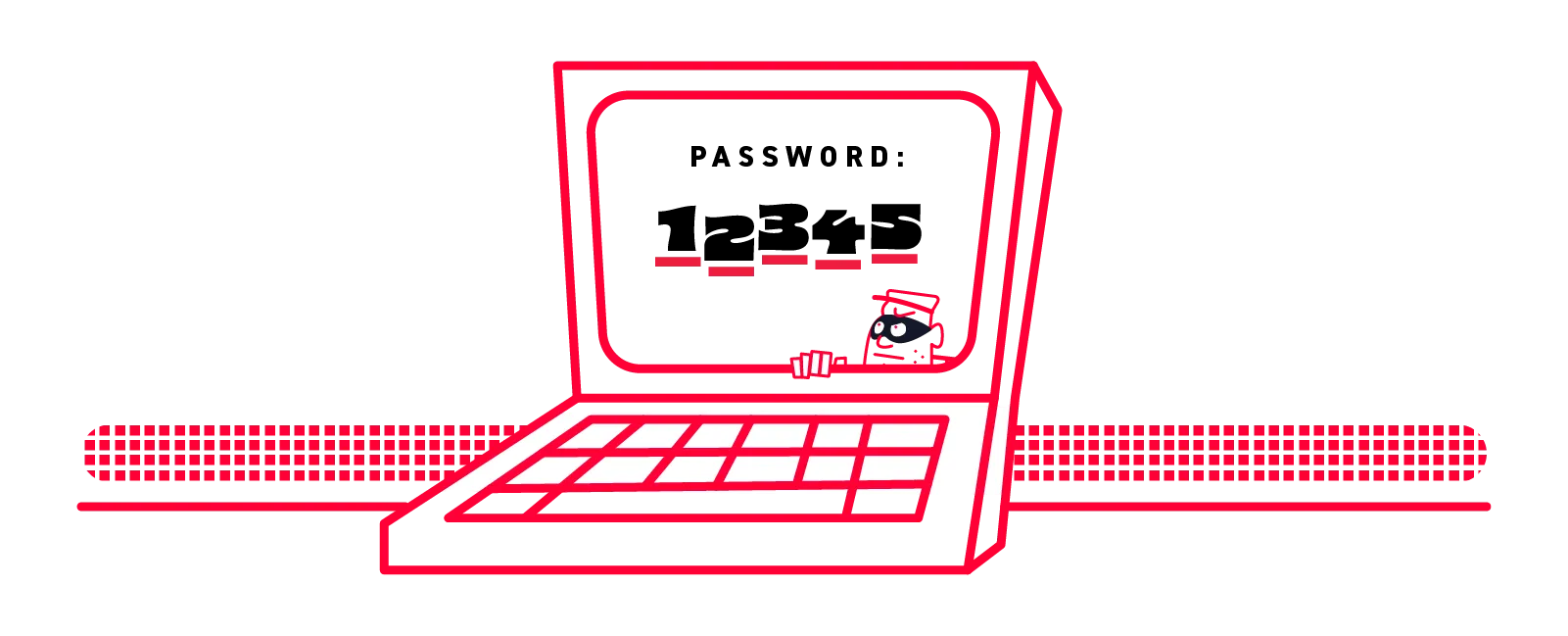
Give every important account its own long password, starting with email, banking, and other sensitive accounts. A reputable password manager can generate and store those passwords, so you do not have to memorize them and a stray compromised login doesn’t unlock your entire list of accounts.
Difficulty: Low
Turn on multi-factor authentication for email, financial, cloud-storage, social media, and other important accounts. An authentication app or security key generally offers stronger protection than a text message, although any available second step is usually better than relying on a password alone.
Difficulty: Low
Turn on automatic updates for phones, computers, tablets, apps, routers, and smart-home devices. Updates often repair known security weaknesses, not just performance problems. Periodically check devices that may not update automatically, especially older routers and connected products.
Difficulty: Low
Use reputable antivirus or anti-malware protection to identify suspicious downloads, unsafe websites, and harmful activity. Many devices and browsers come with useful built-in protection. If you use a third-party service, keep it updated, and avoid installing several competing security programs that may interfere with each other.
Difficulty: Moderate
Pause when a message urges you to click, download a file, share a password, or pay immediately. Check the sender and wording for anything unusual. If the request might be legitimate, contact the person another way or open the organization’s official app or website directly from your browser.
Difficulty: Moderate
Change default passwords on cameras, speakers, thermostats, and other connected products, and install their updates. Remove devices you no longer use or that no longer receive security support. When your router allows it, a guest network can strengthen home network security by separating smart products from devices holding more sensitive data.
Difficulty: Moderate
Save current copies of important photos and documents through a trusted cloud service, external storage, or both. Automatic backups make this step easier to maintain. A backup cannot prevent ransomware or device failure, but it can make recovery easier.
Difficulty: Low to moderate
Phones, tablets, and laptops need protection beyond your home network. Use screen locks, device-finding or remote-wipe features, auto-updates, and account safeguards wherever you take your devices. On public Wi-Fi networks, avoid sensitive transactions, use a reputable VPN, or both.
What’s the difference between internet security and cybersecurity?
In many contexts, they can be used interchangeably. The distinction usually matters more in business contexts, where cybersecurity refers to broad protection of digital systems, networks, and information, while online security refers to single-user online access, browsing, communication, and accounts.
Is antivirus software enough to keep me safe online?
It depends on how much risk you’re willing to tolerate. Antivirus software can’t strengthen a weak password or recognize every scam, nor can it encrypt your traffic at home and away. For more comprehensive protection, you’ll need to think more holistically about your vulnerabilities and strategies to address them.
Do I need a VPN for everyday internet use at home?
Default home network security settings on your router usually include encryption, so if you use a VPN at home, your data will be double-encrypted—which isn't really useful. The best use for a VPN is data privacy away from home, particularly on public Wi-Fi networks.
How do I know if my Wi-Fi network has been hacked?
Possible signs include unfamiliar devices, changed settings, a rejected administrator password—but a breach could also manifest as other threats, like spyware or ransomware. If you suspect a problem, review your router’s connected devices, change the credentials, and update the software immediately. Then contact support if you need more help.
Does my internet provider protect me from online threats?
Almost without exception, internet providers supply routers with a firewall, WPA2 or WPA3 encryption, and automatic firmware updates selected by default. Many providers also offer supplementary security products with features like enhanced threat detection, anti-malware, VPN, and password management to extend that foundation.
Learning what internet security is, and building a comprehensive strategy to address it, doesn’t mean finding one tool per threat. It means building practical layers around your data and knowing where added support could help.
These layers can be easier to manage when useful protections and support are available in one place—for example, with Frontier Internet security products. Available as add-ons to your internet plan, Frontier Secure services can help protect your connected life at every step.
Used separately or together, these services can make it simpler to build protection around your household’s network, devices, accounts, and identity. Explore Frontier Secure to find the combination that fits the way your home connects.